How To Configure Lithium PHP On OS X
April 10, 2013
I’m currently running OS X Lion on my MacBook Pro and in order for me to get Lithium PHP working right I had to consult several different sources, so I thought I would organize all the steps I took in this blog post to hopefully help you out.
Apache
On OS X Lion they removed the gui option to enable web sharing, so we need to use the command line:
sudo apachectl start
Now open up your browser to http://localhost see that apache is running.
The web page that loads should say “It Works!”
Now we need to modify some settings in the httpd.conf file
sudo vim /etc/apache2/httpd.conf
Scroll down for awhile until you find the
AllowOverride None
to
AllowOverride All
Then scroll down some more to the <Directory "/Library/WebServer/Documents>" section and change
AllowOverride None
to
AllowOverride All
NOTE: this section in my httpd.conf file was split up with a bunch of comments so it looks a little different.
Homebrew
We are going to be installing several different packages and the best way to do this is to use Homebrew. Paste this into your Terminal Prompt:
ruby -e "$(curl -fsSL https://raw.github.com/mxcl/homebrew/go)"
and follow the rest of the instructions.
PHP
OS X should actually have PHP 5.3 Installed by default, but let’s go ahead and install the latest version.
brew tap homebrew/dupes
brew tap josegonzalez/homebrew-php
brew install php54
Now we need to update our httpd.conf file:
sudo vim /etc/apache2/httpd.conf
Type /php5_module then press enter to find the right line. Make sure this line is commented out and then add a new line right below it that contains:
LoadModule php5_module /usr/local/opt/php54/libexec/apache2/libphp5.so
Now if you type php -v it should still say 5.3. We don’t want that so let’s update your $PATH:
vim ~/.bash_profile
and add this to the very end of the file:
PATH="$(brew --prefix josegonzalez/php/php54)/bin:$PATH"
Now if you open up a new terminal window and type php -v it should say 5.4.13.
PEAR and PECL
curl http://pear.php.net/go-pear.phar > go-pear.php
sudo php -q go-pear.php
This will prompt you for a couple of things in the command line. Press 1 and change the new installation base ($prefix) to /usr/local the press enter to continue.
Now update your php.ini file
sudo vim /usr/local/etc/php/5.4/php.ini
And change this line:
;include_path = ".:/php/includes"
to:
include_path = ".:/usr/local/share/pear"
And because we already have our php.ini file open let’s go ahead and fix another section that Lithium will complain about. Find the line:
magic_quotes_gpc = On
and change it to:
magic_quotes_gpc = Off
Lithium PHP
Now it’s finally time to set up Lithium PHP. Change to your document root:
cd /Library/WebServer/Documents/
git clone git://github.com/UnionOfRAD/framework.git my_app
sudo chmod -R 0777 my_app
cd my_app
git submodule init
git submodule update
MongoDB
Now let’s set up our database:
sudo mkdir /data sudo mkdir /data/db sudo chown -R $USER /data/db
Since we already have homebrew installed this should be easy:
brew update
brew install mongodb
Now to get mongo and php to work together type:
sudo pecl install mongo
Now we need to update our php.ini file
sudo vim /usr/local/etc/php/5.4/php.ini
and add this line to the very end of the file:
extension=mongo.so
To start mongo type:
mongod &
Now we need to modify or connections file:
sudo vim /Library/WebServer/Documents/my_app/app/config/bootstrap/connections.php
and uncomment the following lines:
Connections::add('default', array(
    'type' => 'MongoDb',
    'host' => 'localhost',
    'database' => 'my_app'
));
Is Everything Working???
Before we check to see if everything is working let’s go ahead and restart apache:
sudo apachectl restart
Now you can browse to `http://localhost/my_app to see the lithium status page. It should look like my screen shot below with a checkbox next to MongoDB.
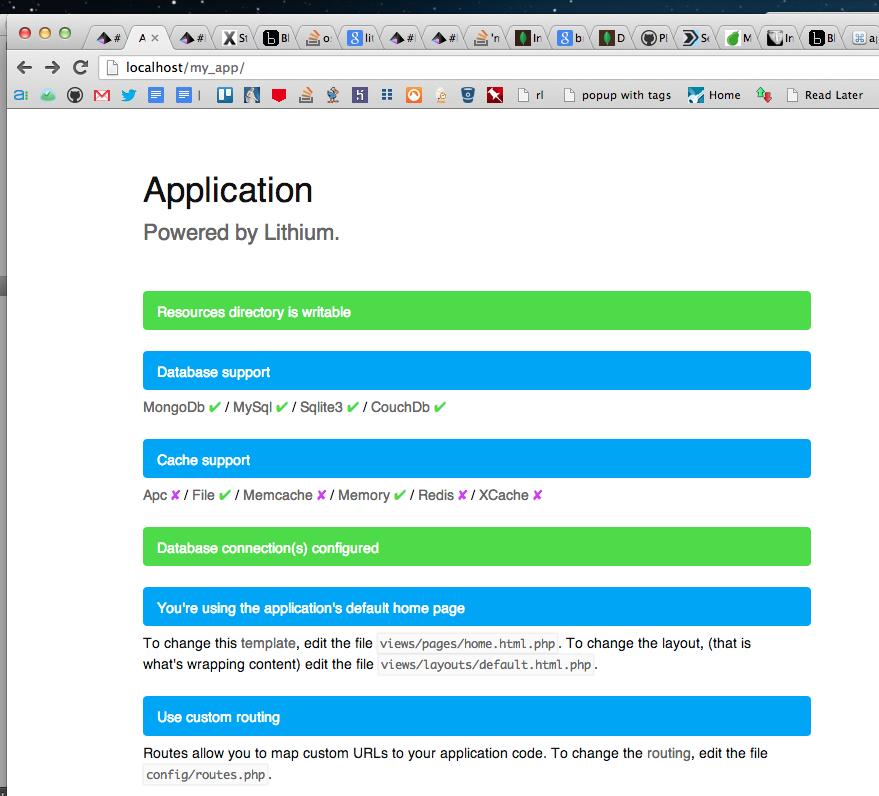
If you are lucky everything should be working now and you can finally start working on your Lithium PHP application :)